GTO Trainer Tips for iOS Devices
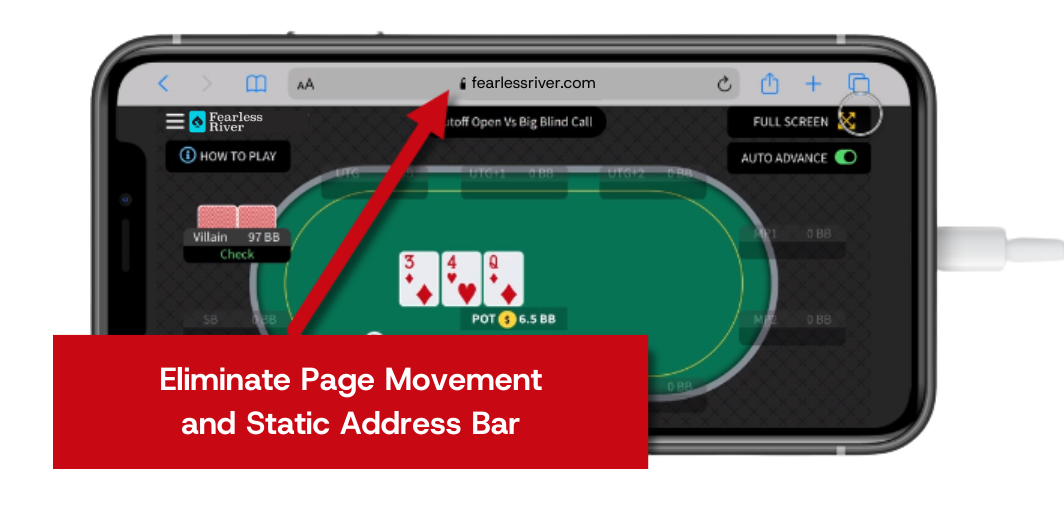
1) Launch Safari browser and navigate to https://fearlessriver.com/
2) Tap the Bookmark icon at the bottom of the screen (it resembles a box with an upward-pointing arrow)
To play the GTO Trainer without the need for screen adjustment between hands, simply add FearlessRiver.com as a Safari Shortcut to your iOS Home Screen.
Need Help? Follow these simple steps...
1) Launch Safari on your device and navigate to fearlessriver.com
2) Tap the Bookmark icon at the bottom of the screen (it resembles a box with an upward-pointing arrow)
3) Tap "Add to Home Screen"
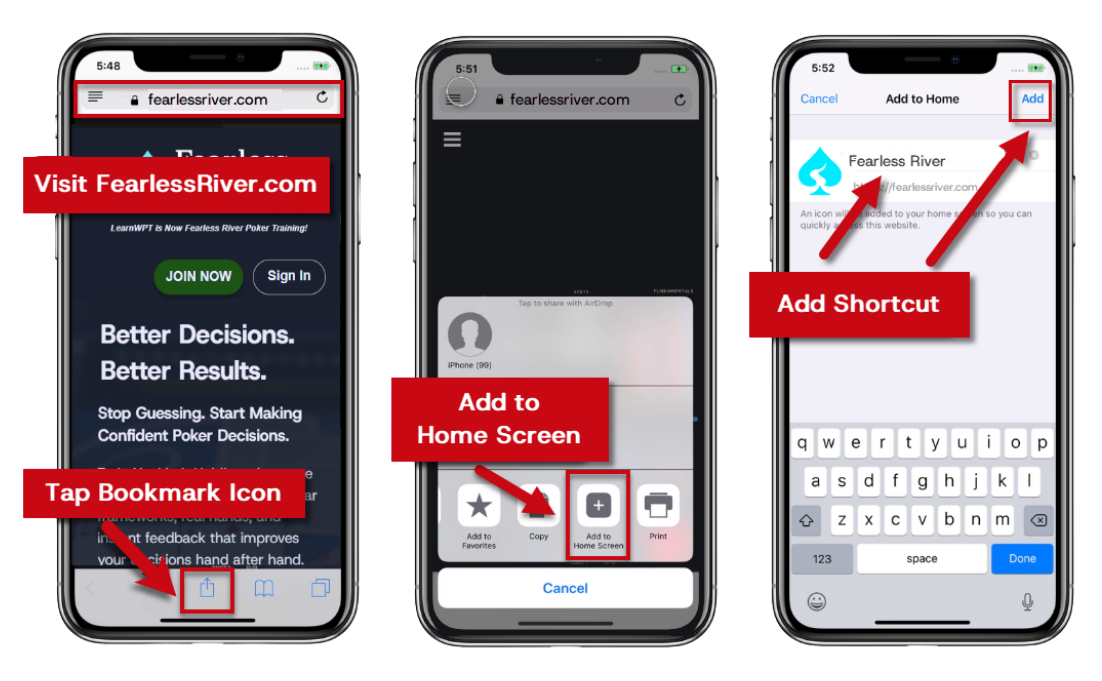
4) Tap "Add" and then "Add automatically" to save the new Fearless River shortcut icon to the home screen. Note: you can accept the suggested name for the shortcut (Fearless River), or enter one you like.
5) You'll now see the new icon next to all your other app icons. If you use several home screens, you may need to scroll to locate it.
To use the icon, just tap it to go directly to FearlessRiver.com in Safari. You can now use the site without the address bar loading.
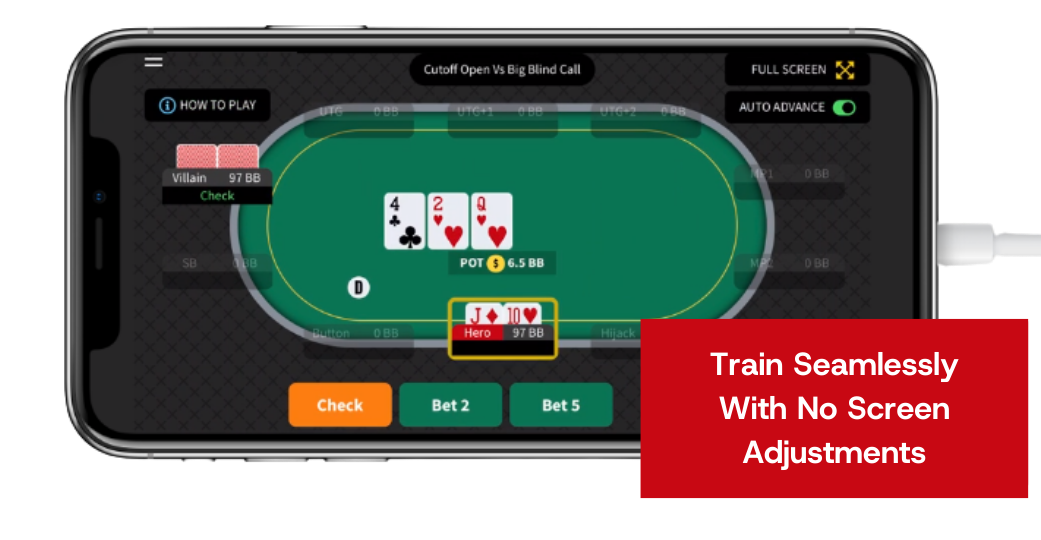
Please note: You must be logged in to your Fearless River Membership to use the GTO Trainer. Once logged in, simply navigate to the GTO Trainer and play seamlessly with no page movement and no address bar in between hands!
Need Assistance? While using the Fearless GTO Trainer you can click the blue feedback widget or email [email protected] with any questions and we'll be happy to help!